Create Simulation
A simulation is a small program that calls your code once per cycle, records its inputs and outputs, and uploads the results to your workspace. This guide shows how to create one, build it, run it and add verification to it.
The easiest way to start is the New menu in the CppModel workspace. The rest of this guide builds the same simulation by hand, so you can see how it is put together.
If you use Claude Code, the CppModel Claude Code plugin can write, build, run and debug simulation tests for your project with its cppmodel:simulation-testing skill.
Using the workspace menu
In the CppModel workspace, open the New menu and click Simulation. In the dialog, set the Name, Total time and Cycle time, then click Create. The browser downloads the generated simulation file.
Writing a simulation in C
Create a file called FirstSimulation.c:
#include <math.h>
#include <cppmodel/CModel.h>

#ifndef M_PI
#define M_PI 3.14159265358979323846
#endif

void RunCyclic(CModelSimulation_ts *self, unsigned long currentTime_ms)
{
    /* Define an input - it is recorded and shown in the workspace */
    double t = CppModel_getInputF64(self, "t", (currentTime_ms / 1000.0) * M_PI / 180.0);

    /* Simulation logic */
    double y = sin(t);

    /* Define an output - it is recorded and shown in the workspace */
    CppModel_setOutputF64(self, "sin(t)", y);
}

int main(void)
{
    CModelSimulation_ts *simulation = CppModel_create("FirstSimulation", 360000, 1000);
    if (simulation == NULL)
        return 1;

    CppModel_setRunStepFunction(simulation, RunCyclic);
    CppModel_Simulate(simulation);

    int result = CppModel_getSimulationResult(simulation);
    CppModel_destroy(simulation);

    return result;
}
CppModel_create(name, totalTime_ms, stepTime_ms) sets up the simulation with three settings:
-
Name (
"FirstSimulation"): identifies the simulation in the workspace. After a run, the simulation appears under this name in the simulation list. ClickVisit Simulationto open its graph.
-
Total time (
360000): how long the simulation runs, in milliseconds of simulated time. The simulation runs as fast as your machine allows, not in real time. -
Step time (
1000): how oftenRunCyclic()is called, in milliseconds. This is the cycle time of the simulated task.
With these settings, RunCyclic() is called every second of simulated time for 360 seconds. The currentTime_ms argument holds the current simulation time, from 0 up to and including the total time.
Inputs and outputs
Every value you want to see in the workspace must be recorded under a unique name:
CppModel_getInputXX(self, name, value)recordsvalueas an input at the current step and returns it. It is usually called with the value that drives the code under test.CppModel_setOutputXX(self, name, value)records an output.
XX is the type: U8, U16, U32, I8, I16, I32, F32 or F64. Choose the one that matches your variable.
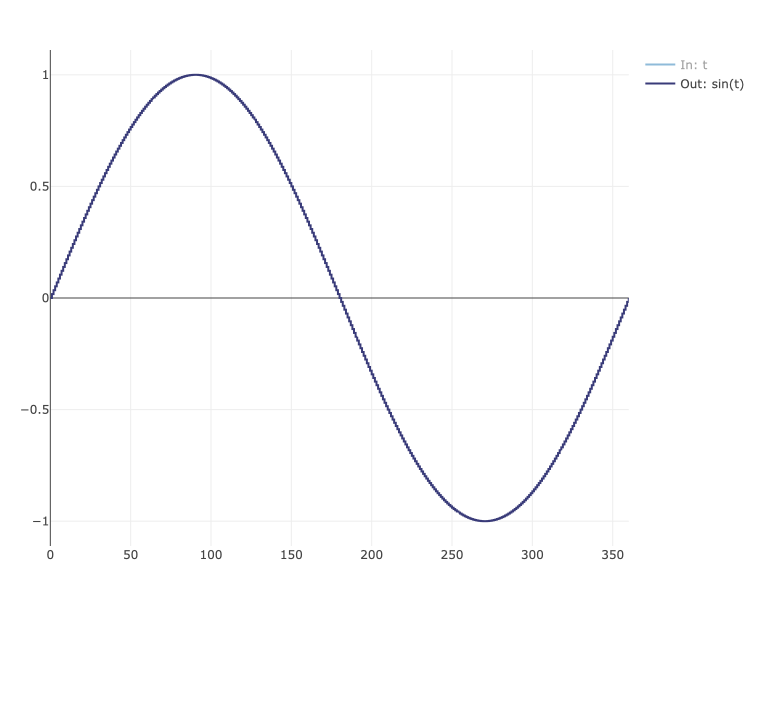
The graph of this simulation in the workspace looks like this:
Parameters
Parameters are values that stay constant during a run, such as gains, limits or set points. They can be changed in the workspace without rebuilding the code:
float gain = CppModel_getParameterF32(self, "Gain", 2.0f);
If the parameter is set in the workspace, that value is returned. Otherwise the fallback value (2.0f) is used and reported to the workspace, so the parameter appears there after the first run. Workspace parameters are fetched before the first call to RunCyclic().
Shorter form with macros
For simple simulations, CModel.h provides two macros that generate the cyclic function signature and main():
#include <cppmodel/CModel.h>

CMODEL_CYCLIC()
{
    double t = CppModel_getInputF64(self, "t", currentTime_ms / 1000.0);
    CppModel_setOutputF64(self, "2t", 2 * t);
}

CMODEL_SIMULATE("MacroSimulation", 10000, 100)
CMODEL_SIMULATE(name, totalTime_ms, stepTime_ms) generates a main() that creates the simulation, runs it and returns its result.
Building the simulation
Link the simulation with the cppmodel::cppmodel target from the CppModel CMake package. Here is an example CMakeLists.txt, assuming the library is extracted into a dependencies folder next to it (see Installation):
cmake_minimum_required(VERSION 3.21)

project(FirstSimulation LANGUAGES C CXX)

list(APPEND CMAKE_PREFIX_PATH "${CMAKE_SOURCE_DIR}/dependencies")
find_package(cppmodel REQUIRED)

add_executable(FirstSimulation FirstSimulation.c)
target_link_libraries(FirstSimulation PRIVATE cppmodel::cppmodel)
if (UNIX AND NOT APPLE)
  target_link_libraries(FirstSimulation PRIVATE m) # sin() and fabs() from math.h
endif()
cppmodel_deploy_runtime(FirstSimulation)
cppmodel_deploy_runtime() copies the CppModel shared library next to the executable, so the program runs straight from the build folder.
Build the project:
cmake -S . -B build
cmake --build build
Running the simulation
./build/FirstSimulation
On the first run, the program prints a login link and waits 60 seconds for you to sign in. The login is remembered in a .cppmodeltoken file in the directory the program runs from, and you are asked again only when it expires. Keep .cppmodeltoken out of version control. When the run finishes, the program prints a link to the results, and they are in the workspace under the simulation's name.
Every run reads its parameters and inputs from the workspace and records its execution there. A run that can't sign in to or reach the workspace fails with a message that starts with CppModel workspace:, and the program exits with a non-zero code. Apart from the local runs you ask for explicitly, a simulation never passes without being recorded.
Environment variables
| Variable | Effect |
|---|---|
CPPMODEL_USERNAME, CPPMODEL_PASSWORD | Log in with these credentials instead of the browser login. Use them in CI. |
CPPMODEL_LOGIN_TIMEOUT | How many seconds to wait for the browser login (default 60). 0 fails right away instead of printing a login link, which is what you want in CI. |
CPPMODEL_WORKSPACE | The workspace to use when your account belongs to more than one, for example w12345. By default it comes from your account. |
CPPMODEL_ACCESS_TOKEN | An access token for a single run, for example one handed over by the CppModel MCP server. It takes precedence over the saved login and is never stored. |
CPPMODEL_REQUIREMENTS_FILE | Where the requirements a run verified are written, instead of cppmodel-requirements.json in the working directory. See Requirements. |
Local runs
Two command-line options of the built simulation change where a run takes its inputs from and where its results go. The library reads them itself, so your main() doesn't need to pass them on, and they work the same for CMODEL_SIMULATE, C++ and the Python and Node.js packages.
| Option | Effect |
|---|---|
--inputs <file> | Takes the inputs and parameters from the file (- for stdin) instead of the workspace. |
--results <file> | Writes the execution to the file (- for stdout) instead of recording it in the workspace. |
The inputs file has the same format as the inputs and parameters set for a run in the workspace, and an execution downloaded from the workspace works too:
{
  "inputs": [{ "label": "t", "x": [0, 180000], "y": [0.0, 1.5] }],
  "parameters": { "Gain": 2.5 }
}
Each input is a series of x (milliseconds) and y values, held until the next x.
./build/FirstSimulation --inputs candidate.json --results out.json
- Both options together make a local run. Nothing is fetched or recorded, so the run leaves nothing in the workspace. It still needs a valid login, from the same sources as any run.
- A local run returns its real result. The exit code is
0when every step passed, as for a recorded run. - Only recorded runs count. When you have found the values you want, record the run with
./build/FirstSimulation --inputs candidate.json, or usecppmodel-tool promote, which also checks that the recorded run reproduced the local one. --inputson its own records the run as usual, with the values from the file.--resultsis refused when theCIenvironment variable is set, so a CI job always records its executions.- One simulation per process: with
--results, a program runs one simulation. - With
--results -, the library prints its own messages to stderr. Keep your simulation's prints off stdout too, or the JSON there won't parse.
Adding verification
A special output called CppModel.StepResult marks each step as passed (1) or failed (0). Here is RunCyclic() extended with a check that fails whenever |sin(t)| exceeds 0.5:
void RunCyclic(CModelSimulation_ts *self, unsigned long currentTime_ms)
{
    double t = CppModel_getInputF64(self, "t", (currentTime_ms / 1000.0) * M_PI / 180.0);
    double y = sin(t);

    CppModel_setOutputF64(self, "sin(t)", y);
    CppModel_setOutputU8(self, "CppModel.StepResult", fabs(y) <= 0.5);
}
The workspace then shows an extra graph below the results: green where the steps passed, red where they failed.
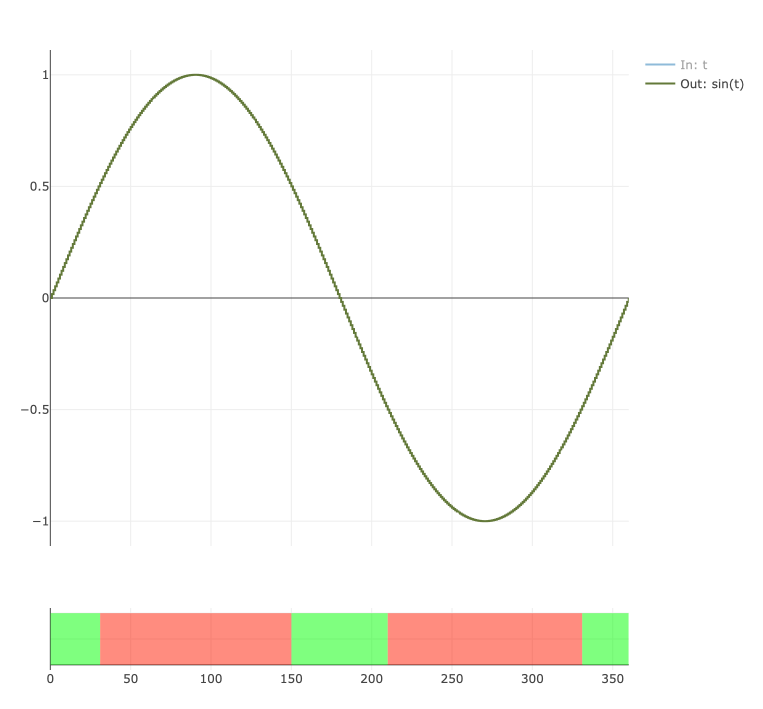
The verification also sets the result of the whole run. CppModel_getSimulationResult() returns 0 when every step passed and the run was recorded in the workspace, and a non-zero value otherwise. When main() returns this result, the simulation works as a test: the program fails exactly when the verification fails, which is what CTest and CI systems check.
To see where a failure happened from the exit code alone, also record the step time in the special output CppModel.Step. CppModel_getSimulationResult() then returns the CppModel.Step value of the first failing step:
CppModel_setOutputU32(self, "CppModel.Step", (uint32_t)currentTime_ms);
enable_testing()
add_test(NAME FirstSimulation_Test COMMAND FirstSimulation)
For a complete CI setup, see Add a simulation CI to your process-based code.
CppModel.StepResult checks one step at a time. To check behavior over time, such as a response within a deadline, settling after a setpoint change or allowed mode transitions, and to record which requirements a simulation verifies, use verification rules. They set CppModel.StepResult for you.
Writing a simulation in C++
The C++ API (cppmodel/cppmodel.hpp) offers the same features through the cppmodel::Simulation base class. It is header-only and is compiled by your own compiler, so it needs C++17 or later:
#define _USE_MATH_DEFINES
#include <cmath>
#include <cppmodel/cppmodel.hpp>

class FirstSimulation : public cppmodel::Simulation
{
public:
    FirstSimulation()
    {
        name = "FirstSimulation";
        time_ms = 360 * 1000; // Total time
        stepSize_ms = 1000;   // Step time
    }

    void RunCyclic(unsigned long long simulationTime_ms) override
    {
        double t = inputs.GetSafe("t", (simulationTime_ms / 1000.0) * M_PI / 180.0);
        double y = std::sin(t);

        outputs["sin(t)"] = y;
        outputs["CppModel.StepResult"] = std::abs(y) <= 0.5;
    }
};

int main()
{
    FirstSimulation simulation;
    simulation.Simulate();

    return simulation.GetSimulationResult();
}
- Record inputs with
inputs.GetSafe(name, value), which recordsvalueand returns it. - Record outputs by assigning to
outputs[name]. - Read parameters with
GetParameter(name, fallback), for exampleGetParameter("Gain", 2.0).get<double>(). LikeCppModel_getParameterXX(), it returns the workspace value when one is set and reports the fallback otherwise. Workspace parameters are also available asparameters[name]from the first call toRunCyclic()onwards. - Inputs and outputs are numbers; parameters keep their JSON type (number, bool, string, array or object).
- Override
Init()andFinalize()if you need code to run before the first step or after the last one. An exception thrown fromInit(),RunCyclic()orFinalize()aborts the run, nothing is recorded, and the exception comes out ofSimulate(). Errors reported by the library are thrown ascppmodel::Error.
Build it with the same CMakeLists.txt as the C version, using FirstSimulation.cpp as the source. The m library is not needed for C++.
Persistent simulations
A persistent simulation runs once and then keeps running, serving further executions requested from the workspace until you stop it. Create one with CppModel_createPersistent() (or the CMODEL_PERSIST(name, totalTime_ms, stepTime_ms) macro) in C, or derive from cppmodel::PersistentSimulation in C++. The rest of the simulation is written the same way.